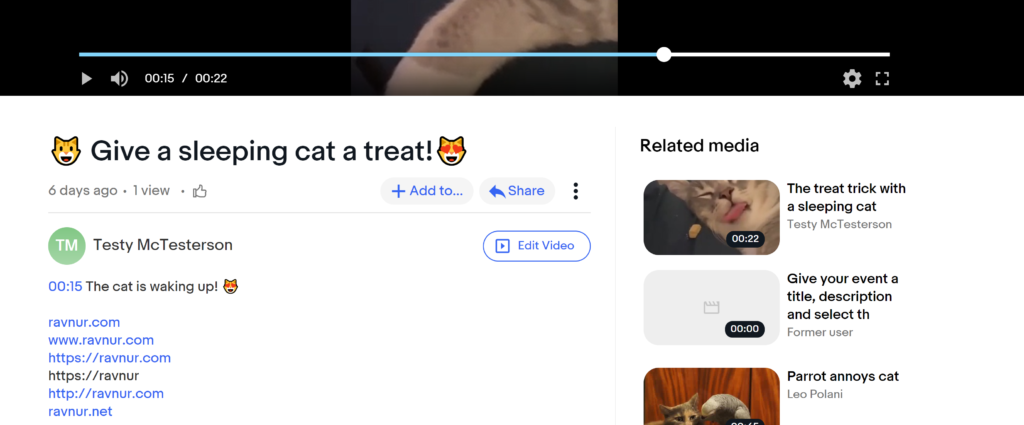
Your video title and description are a part of your video branding. They help advertise the value of your video, and drive the viewers to watch your video. The description not only tells viewers what your video is about, it also can help them engage with elements of the video, supporting materials and websites. By spending a little time creating an engaging description, you’ll earn more views and more viewer engagement.
Adding links, emojis, chapters and markup to the description
The description field for your videos, audio files and playlists can accept line breaks, links, emojiis, clickable timecodes for chapters and markup to customize your text.
- Line breaks. Just press enter to insert a line break to start a new line or paragraph.
- Emojis. The text editor doesn’t include emojis, so you’ll have to copy your emojis from another source and paste them into the description field.
- Links. The description field will recognize most links. Links that have https, http, www or nothing at all will be recognized if they have the domain extension (e.g. .com, .net. .de, etc.)
- Clickable chapters. You can add timecodes in the description and they will automatically be converted into clickable links that load the video at that time. This allows you to add a list of chapters in the description that the user can click on to go to that point in the video. Very helpful for long videos! Just enter a time that is within the video. For example: 2:35 Add the dry ingredients and mix. Then save and you’ll see that the time has turned into a clickable link.
- Markup. These are HTML tags that tell the browser how to display the text between the tags. For example: <b>bold</b> <i>italics</i> . The text editor provides some basic markup (e.g. bold, italics, bullet points, numbered list, etc.) and the description field will recognize a wide range of markup tags that you can add on your own.